Understanding Your Views
Learn the difference between Perspective and Orthographic views in Truck Packer and when to use each

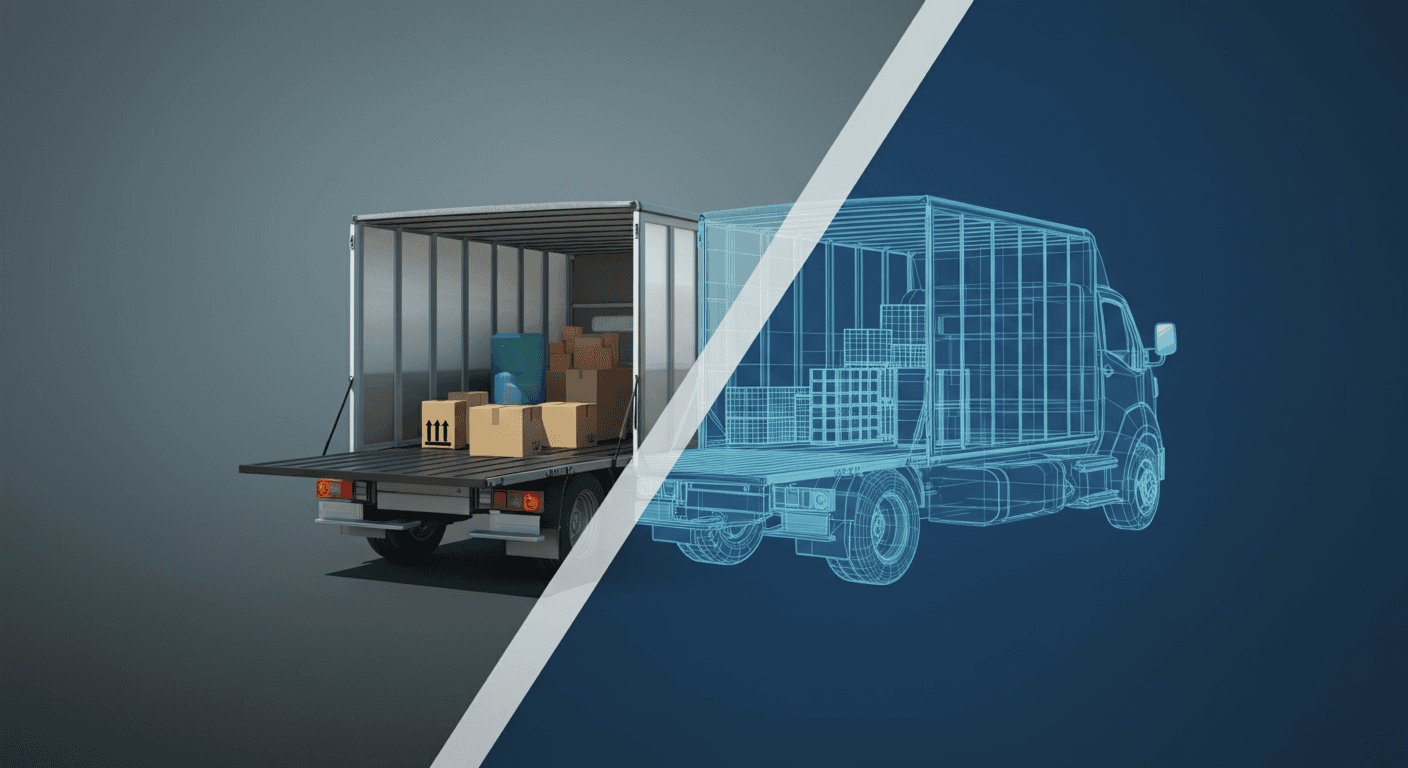
Have you ever looked at four similar-looking images in Truck Packer and wondered why some appear more realistic while others look flat? The answer lies in understanding two fundamentally different ways of viewing 3D space: Perspective and Orthographic views. These aren't bugs or rendering issues—they're two different lenses for looking at the same scene, each with its own purpose and strengths.
Perspective View
Perspective view mimics how your eyes actually see the world. Objects farther away appear smaller, parallel lines converge toward vanishing points, and there's a natural sense of depth and distance. This dynamic, realistic rendering makes it incredibly intuitive for visualizing how items will actually fit in your truck bed.
When you're planning a load and want to get a feel for the spatial relationships between objects, Perspective view is your best friend. It's great for understanding clearances, checking if taller items will interfere with shorter ones, and getting an overall sense of how packed your truck will be.
Orthographic View
Orthographic view comes from the world of technical drawing, CAD software, and drafting. It's a flat projection where parallel lines stay parallel, and objects maintain their true dimensions regardless of distance from the camera. Everything is compressed to a 2D plane without any depth distortion.
This might look flat or even cartoonish compared to Perspective view, but that's exactly the point. Orthographic view is powerful for accuracy and layout clarity. When you need to measure distances, align items precisely, or create export drawings that show exact dimensions, Orthographic view eliminates the visual distortion that perspective introduces.
A Brief History
Truck Packer originally only offered Orthographic mode, reflecting its roots in precision packing and technical planning. However, based on user feedback and the need for more intuitive visualization, the software now defaults to Perspective view when you first open it.
That said, Orthographic view remains critical for creating clean export drawings without camera skew. When you're sharing your packing plan with others or need to print precise layouts, Orthographic ensures that what you see is exactly what you measure.
How to Toggle Between Views
Switching between these two views is simple. Look for the square/cube icon in the top right menu of your Truck Packer interface. Clicking this icon will toggle between Perspective and Orthographic modes, letting you choose the view that best suits your current task.
The Bottom Line
If your Truck Packer view looks flat or cartoonish, it's not a bug—it's just a different lens. Both Perspective and Orthographic views have their place in your workflow. Use Perspective when you want realistic visualization and spatial understanding. Switch to Orthographic when you need precision, accurate measurements, and clean technical drawings.
Understanding the difference between these two views will help you work more efficiently and communicate your packing plans more effectively.
by Michael Keith Lewis
Stop reading, start packing: log in to Truck Packer and lay out your trailer.

